Reading time: 2 Minute Read Time
Keeping your MissionaryConnect account secure is simple. You can either change your password while logged in, or reset it if you cannot access your account.
If you are already signed in to MissionaryConnect, you can update your password from your account area.
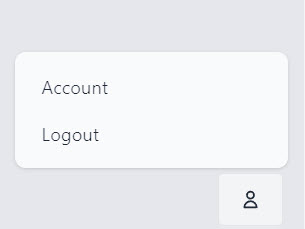
User icon opens the account menu
Account takes you to your account settings
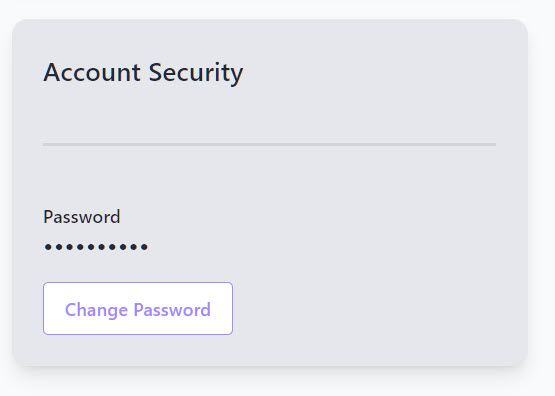
Account Security shows your password section
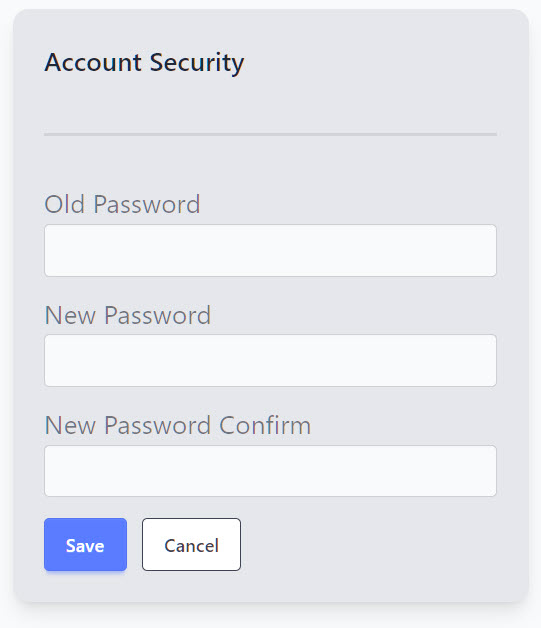
Change Password opens the password update form
Once your password is updated, your account will continue using the new password going forward.
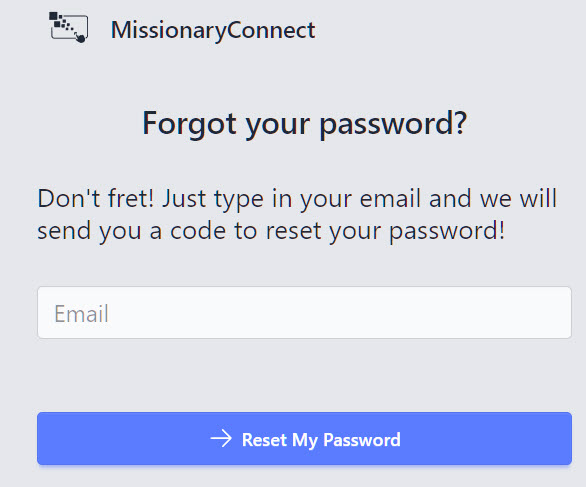
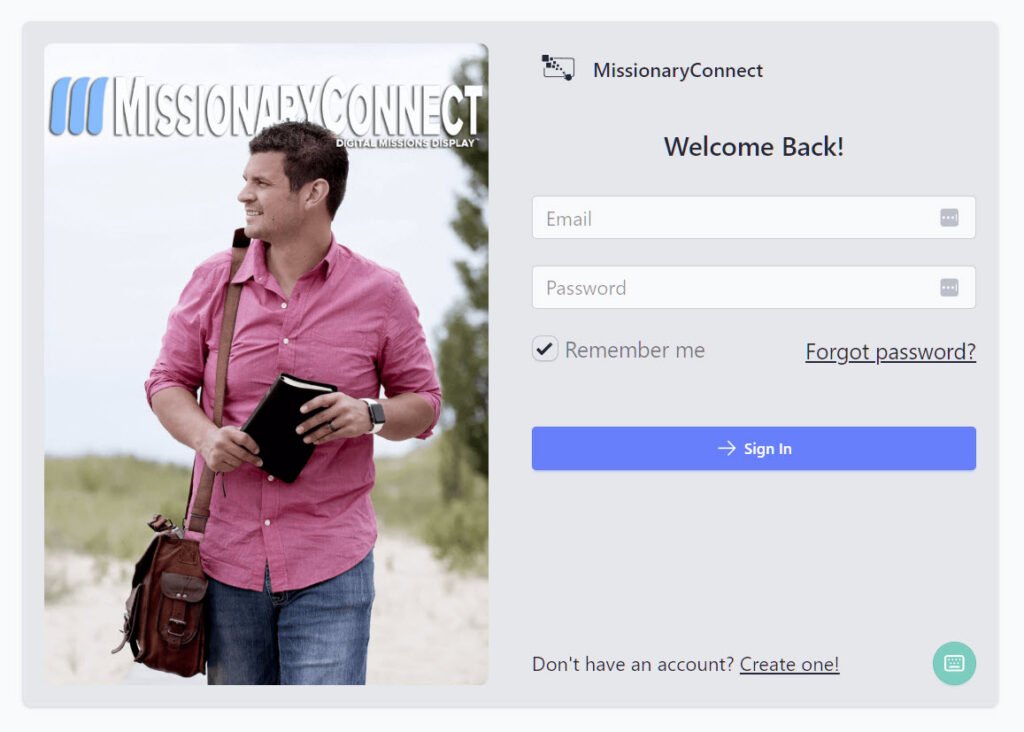
If you cannot sign in, use the password reset page:
https://missionaryconnect.app/forgot-password
Choose a password that is:
A strong password helps protect your church account, missionary information, and administrative access.
Password reset links can expire. If your link no longer works, go back to the Forgot Password page and request a new one.
When changing your password from the account area, make sure you are entering your present password exactly as it was originally set.
If you are still having trouble accessing your account, contact MissionaryConnect support for assistance.
Leave Us a 5 Star Review Today!
 Doc Summary