 Doc Summary
 Thinking
So you’re ready to dive into some data entry and get your Digital Misisons Display up and running, great! Here are the steps for accessing the Admin area of the missionsApp so you can update and access features and update missionaries. A subscription is required to receive updates and to use a few advanced features.
Login to MissionaryConnect #
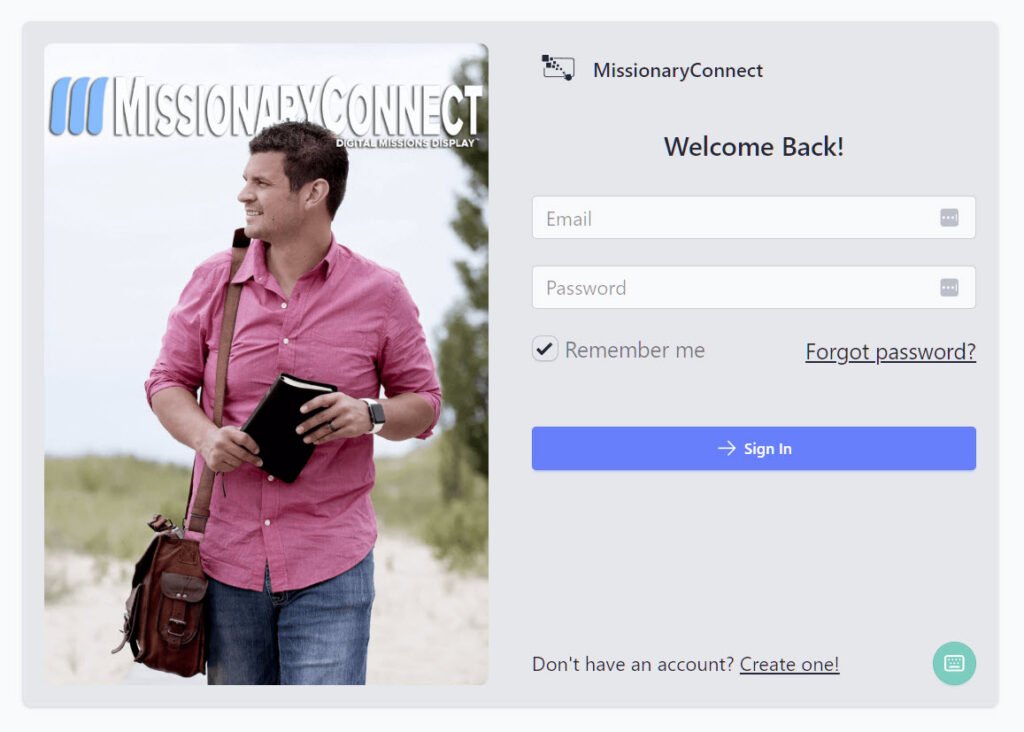
Enter your email and password to login to MissionaryConnect. You can select the Remember Me box to save your password. If you forgot your password. simply click Forgot Password and you will receive an email with password reset instructions.
Watch the Video to Learn #
How to Log in to MissionaryConnect #
MissionaryConnect allows church administrators, missionaries, and authorized staff to securely manage missionary profiles and display content for the Digital Missions Display.
Follow the steps below to log in to your account.
Step 1: Open the Login Page #
In your web browser, go to:
https://missionaryconnect.app/login
This page is the secure access point for the MissionaryConnect admin system.
Step 2: Enter Your Email Address #
Type the email address associated with your MissionaryConnect account.
This will typically be the email address used when your account was created or when you accepted an invite from your church administrator.
Step 3: Enter Your Password #
Enter the password connected to your account.
Passwords are case sensitive, so make sure your capitalization is correct.
Step 4: Click Login #
Click the Login button to access the MissionaryConnect dashboard.
As an Admin or Staff User, after logging in, you will be able to manage missionary profiles, update information, control visibility of missionaries on the map or globe, and access other administrative features.
Forgot Your Password? #
If you cannot remember your password, click the Forgot Password link on the login page.
You will receive an email with instructions to reset your password.
Important Note #
Only authorized users can access the MissionaryConnect admin area. If you do not have an account, you will need to receive an invite from your church administrator or register if registration is enabled.
Frequently Asked Questions #
Will someone be able to enter the missionary data?
Yes! Digital Mission Display Ministry will manage your missionary data for you! Remote Missionary Data Curation has a flat rate of $99 a month for up to 32 missionaries. We will not only update your missionaries, but we will create graphics, update your computer, and keep everything secure.
What kind of documentation is available to learn about the in and outs of the software?
This website https://docs.missiondisplay.org has been written as a wiki or web md for the Digital Missions Display System.
Can you come and install the system?
We have made the process of setting up and managing the the system and it can be installed by the church relatively easy. If your church absolutely needs out team to install, the Digital Missions Display ministry can help. You can call Paul at (734) 330-0570 for more information and schedule.
Is the admin interface difficult to navigate?
No, it isn’t. We have designed the admin interface with user-friendliness in mind, so even individuals who are not technologically savvy can quickly catch on to its functions.
Is the initial data input process time-consuming?
Yes, entering data for the first time can take some time. However, once a few missionaries have been input into the system, the process becomes much simpler.
Do we have to purchase hardware form you?
We acknowledge that numerous churches now possess comprehensive IT departments. If your organization prefers to procure hardware independently, we respect and support your decision.
Is there a trial version of the software?
No. There is no Trial Version. You can sign up and if you do not like the software, please contact Paul and he will help you to make ure that you understand everything. You should always Read The Instructions or watch all of the Training Videos before you give up. The software was designed to be extremely user-friendly and easy-to-use.
Is there a long term contract?
We do not require contracts for churches. Churches have the option to invest in the software on a monthly basis, or for a longer periods. We ask that if you subscribe yearly, that you stay committed to that time frame. We never want the Mission Display to become a black hole in the wall. We are prepared to help you have a successful Mission Display Ministry! You can pay in advance up to 1 year an receive 1 month off each year. For special terms, please contact Paul at (734) 330-0570
How do I login to the MissionaryConnect
To log in to MissionaryConenct as a registered user, follow these steps:
1. Open a browser.
2. Navigate to https://missionaryconnect.app/login
3. Click on “Sign in” or “Access App”.
4. If you are already logged in, the button will say “Access App” if you are not logged, then click “Sign in” and enter your login details.
5. Once yo uare logged in click “My Churches”, the 3 dots to the right, and “Manage”.
If the password is correct, you will be logged in to the admin area.
If you do not have the admin password or have forgotten it, you can reset the password by clciking “Forgot Password” .
What is Kiosk Mode?
In Windows, or on Sndroid devicesm, kiosk mode is a feature that allows a user to set up a device to run a specific application or website in full-screen mode, while restricting access to other features or applications on the system. It is often used in public or shared environments, such as museums or airports, to provide a controlled and secure user experience.
Kiosk mode is a special setting only available on Windows 11 Pro or Android 13.
Why is the map important?
The map helps church members see where missionaries are serving around the world. This visual connection helps people remember the missionaries and pray more intentionally for the harvest field.
What makes MissionaryConnect different from other systems?
MissionaryConnect focuses on connecting church members to missionaries through interactive maps, profile pages, and visual engagement rather than simply listing missionary information.
What equipment do we need?
Most churches use:
• a large Android touchscreen or TV (65″–75″ is common)
• a small computer or media device
• an internet connection
The MissionaryConnect system runs in a web browser.
Can it be customized for our church?
Yes. Churches can organize missionaries, manage profile visibility, and control how missionaries appear on the map and within the system.
Does it replace our current missions board?
Many churches keep their current missions wall but use the Digital Missions Display to enhance it. The display provides far more information and allows members to interact with the missionaries.
Is the system difficult to set up?
No. Once the system is installed and missionaries are entered, the platform manages the display automatically. Many churches have their system running within a short time after installation.
Can we include prayer letters and videos?
Yes. Missionary profiles can include photos, videos, and prayer letters so church members can stay informed and pray more specifically for each missionary.
Can members access the missionaries from their phones?
Yes. MissionaryConnect is web-based and works on phones, tablets, and computers. Churches can also provide QR codes that allow members to open missionary profiles directly from their mobile devices. Small devices like phones have limited real estate. Small devices display Missionary Cards only. Spinning globe and Flat Map are not avaible.
Can we hide missionaries in sensitive locations?
Yes. MissionaryConnect includes visibility controls so churches can protect missionaries serving in restricted areas. Profiles can be limited, partially hidden, or displayed without revealing exact locations.
Can missionaries manage their own profiles?
Yes. Missionaries can be invited to manage their own profile where they can upload photos, update ministry information, and share prayer letters.
Who updates the missionary information?
Missionary profiles can be updated by church administrators or by the missionaries themselves depending on the permissions the church chooses.
How many missionaries can we add?
The Pro Plan gives you unlimited data, unlimited screensavers, unlimited videos, unlimited missionaries. Basic Plan displays up to 30 missionaries, 1 screensaver, and 1 video per missionary. We hope that church leaders would be mindful of data storage costs and curate their missionary data responsibly.
How much does MissionaryConnect cost?
MissionaryConnect is offered as a subscription service. Churches pay a monthly subscription of $39 or $59 that allows them to manage and display up to 30 misisonaries for Basic Plan or an unlimited number of missionaries with Pro Plan.
Do we have to buy a touchscreen display?
No. MissionaryConnect can be accessed from any web browser. Many churches choose to install a large touchscreen in their foyer for the Digital Missions Display, but the system can also run on TVs, kiosks, laptops, or tablets.
How does the system work?
Missionary profiles are stored in the MissionaryConnect system with location data, photos, and information about their ministry. These profiles are displayed on an interactive globe, world map, or missionary card view. Members can tap or click on missionaries to open their profile pages.
What problem does MissionaryConnect solve?
Many churches support missionaries but their members rarely see them or hear updates outside of occasional prayer letters. MissionaryConnect keeps missionaries visible by placing them on an interactive map with profiles, photos, and updates that members can explore anytime.
What is the Digital Missions Display?
The Digital Missions Display is a Baptist Ministry founded by Paul Douglas. The core focus is software designed as a touchscreen presentation system used in church foyers or missions areas. It runs the MissionaryConnect platform and allows church members to explore missionaries by touching the screen and interacting with the map. Along with designing and building software, the ministry also supports the Missionary Profile Podcast and helps churches and missionaries navigate the digtial landscape.
What is MissionaryConnect?
MissionaryConnect is a web-based platform that helps churches organize and display the missionaries they support. It allows churches to showcase missionaries on an interactive world map, create dedicated missionary profile pages, and keep members connected to the harvest field.
What is a Digital Mission Display?
A Digital Missions Display is an interactive touchscreen system that helps churches present and explore the missionaries they support. Instead of a traditional missions board with printed photos, the Digital Missions Display allows church members to interact with an on-screen world map and view detailed missionary profiles.
Church members can touch the map, select missionaries serving in different parts of the world, and learn more about their ministry. Each missionary profile can include photos, videos, ministry information, and updates that help the church stay connected to the work God is doing across the globe.
The display typically runs on a large screen in the church foyer or missions area and uses the MissionaryConnect platform to manage and display missionary information.
What is the overall goal of MissionaryConnect?
The goal is simple: to help churches keep the harvest field visible and keep missionaries connected to the people who pray for and support them.
How does this help keep missions visible in the church?
Traditional missions boards are often static and rarely updated. MissionaryConnect allows churches to keep missionary information current while giving members an interactive way to explore the mission field.
How does this help with Faith Promise missions?
Faith Promise giving is strengthened when the congregation can clearly see the missionaries their faith promise supports. The interactive map helps members visualize the global reach of their church’s missions program.
How does this help our church pray for missionaries more effectively?
Each missionary profile includes information, photos, and updates that help members pray more specifically. Instead of missions being a distant concept, people can see where missionaries are serving and learn about their ministry.
How does this help churches keep missionary information organized?
MissionaryConnect provides a single place where missionary information can be stored and updated. Instead of scattered files, emails, and letters, churches have one central system for missionary profiles and updates.
Will this require a lot of administrative work?
No. Once missionaries are added to the system, updates can be managed easily by church staff or by the missionaries themselves if the church allows it.
Does this replace missions conferences or missionary presentations?
No. MissionaryConnect complements missions conferences and missionary visits. It provides a year-round reminder of the missionaries the church supports.
How can this help introduce new missionaries to the church?
When a church takes on a new missionary, their profile can immediately be added to the map. Members can explore their ministry, learn about their field, and begin praying for them right away.
Is this appropriate for churches with missionaries in restricted areas?
Yes. The system is built on a secure, private server. It includes visibility controls so churches can protect missionaries serving in sensitive locations.
Can this help new church members learn about our missionaries?
Yes. Many visitors and new members are interested in learning about the missionaries their church supports. The Digital Missions Display gives them an easy way to explore the church’s missions program.
Can this be used in teaching or missions classes?
Yes. The interactive map makes it easy to show where missionaries serve around the world. Many churches use the display during missions emphasis weeks, Sunday school classes, and missions conferences.
How does this help younger generations connect with missions?
Many younger church members are used to interactive technology. The Digital Missions Display creates an engaging way for children, teens, and young adults to explore the mission field and learn about missionaries.
Can this help increase missions giving?
Many churches find that when members are reminded of the missionaries they support, their heart for missions grows. Visual engagement with the mission field often leads to greater prayer involvement and stronger missions giving. MisisonaryConnect does not guarantee an increase in giving, but our research and church leader comments prove that this is happening.
How does MissionaryConnect strengthen a church’s missions program?
MissionaryConnect keeps the harvest field visible before the congregation. When church members regularly see the missionaries they support, it increases awareness, prayer, and personal connection to the work of missions.


