Managing Location Data
Reading time: 2 Minute Read Time
Thinking
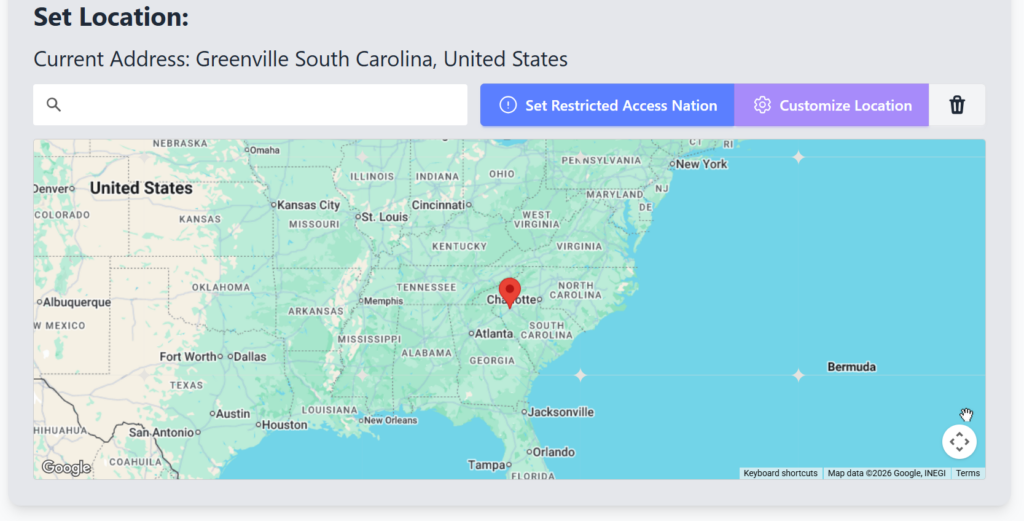
The simplest way to set a missionary location is by using the location search bar.
Administrators can type any location that Google Maps recognizes, including:
• Countries
• Cities
• Regions
• Addresses
• Landmarks
Once the location is entered, the map will automatically move to that area and place a marker.
This allows churches to quickly place missionaries anywhere that Google Maps can identify.
Administrators can also manually adjust the missionary location by moving the pin on the map.
Simply click and drag the red location marker to the correct position. The map will update the missionary’s location automatically.
This method is useful when:
• The exact ministry location is not listed in Google Maps
• The missionary serves outside a major city
• A more general location needs to be displayed
For precise control, administrators can use the Customize Location option. This option also allows you to add a Custom Title to the location.
This allows locations to be set using:
• Latitude
• Longitude
This is helpful when churches want to place a missionary in a very specific area that may not appear in a standard search.
Coordinates can also be used to slightly offset a missionary’s location when privacy is important.
MissionaryConnect also includes a Restricted Access Nation setting for missionaries serving in sensitive or creative-access areas.
When this option is used, the system allows the church to represent the missionary without revealing the exact location publicly.
This helps protect missionaries serving in places where openly displaying their ministry location could create safety concerns.
If a missionary moves to a new ministry location, administrators can update the location at any time.
The existing location can also be removed using the Garbage Can delete option before selecting a new location.
When setting missionary locations, churches should use wisdom and discretion, especially when missionaries serve in sensitive areas.
If exact locations should not be publicly displayed, administrators can use general city locations, nearby regions, or coordinate adjustments to protect missionary safety.